
Blackboard Ultra (Faculty) Respondus 4.0: Download Exam from Blackboard into Respondus
This article describes the steps to download an exam from Blackboard Ultra and import it into Respondus 4.0.
Downloading an Exam from Blackboard Ultra into Respondus 4.0
You may have an occasion where you have an exam in Blackboard Ultra but want to download it to Respondus. Blackboard Ultra does have the option to print an exam without downloading to Respondus 4.0. The instructions for printing an assessment in Blackboard Ultra can be found in the Blackboard LMS Help Center - Print Assessment page.
- Open Respondus.
- Click on the Retrieval & Reports tab.

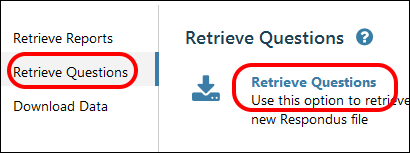
- Click the Retrieve Questions tab.
- Click the Retrieve Questions button.
- If you have not yet set up a server connection to Blackboard, click on the -add new server- drop-down box. If you have set up a server already, skip to step 8.

- A new box will pop up. Accept the default "Yes, check for pre-configured server settings." Click the Next button.
-
Enter a name for the server. This server will be for all of your classes so you do not have to name it by the class. "SIUE" or "Blackboard" is a good name.
- Click on the Next button. (You will notice that the login information boxes are grayed out if adding a new server.)
- A pop-up window will appear. Click the OK button to close the pop-up window.

- If you are using Respondus for the first time, or if you have just updated Respondus, you will receive a pop-up error titled Helper Tool Download. Click the OK button in this popup and Respondus will download an add-on it needs to enable you to log in to Blackboard. The pop-up from the previous step will reappear. Click OK to continue.

- A browser window with the Blackboard login will open up. Log in to Blackboard.
- Close the browser window after you have logged in. Click the Continue After Login button in the upper right corner of the window.

- When the browser window closes, another pop-up window will appear. Click the OK button to close the pop-up window.
- You will be back at the "Publish Wizard" window. Choose your Blackboard course(s) in which to publish.
- Click Next to connect to Blackboard.
- Choose your course with the exam.
- Choose the exam.
- Enter a new name for the file.
- Click Next to retrieve the questions from Blackboard.

- Wait for the process to be complete. This may take a few minutes depending upon the size of the exam. A pop-up window, "File Saved," will appear. Click OK.
- Click the Finish button.
- Click on the Edit tab to see the questions.

Need Additional Support?
If you have any questions or need further assistance, please contact the ITS Help Desk:
- Call: (618) 650-5500
- Email: help@siue.edu
- Visit: Lovejoy Library Room 0005 during regular business hours.
This guide aims to provide useful information, but as technology changes, interfaces or steps might vary. Please use the Comment button to let us know if anything differs from your experience. Your feedback helps us keep this information accurate. Thank you!