
YuJa (Faculty) - Intermediate Editing: Replace an Image
This document describes how to replace an image over a video.
Whether you find an error in a PowerPoint slide or you want to update information on your video, YuJa allows you to insert an image over the existing video. These instructions will walk you through how to insert the image. If you are replacing a slide from a PowerPoint presentation, follow these instructions to save a slide as an image.
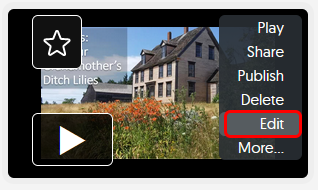
- Navigate to the thumbnail of the video. Hover your mouse over the thumbnail and click on the cog. Click on Edit in the menu.
- Click on the Slides icon in the menu on the left of the screen.

- Click on Upload Slide button. Navigate your computer to where the image is located.

- Set the duration of the slide in seconds. Click Apply Slide when ready.

- A purple placeholder box will appear on the timeline indicating where the image will be inserted.

- If the time on the new slide needs to be adjusted, click on the purple box in the timeline and drag to the appropriate time.This will also update the slide duration in the Slides window from the menu. If this is not the correct image, click red trash can icon to delete.

- When the new image has been placed, click the Save Projecy button at the top of the page.
- The title of the video will include "_edited". It is a best practice to save a new video rather than overriding the original to preserve the original video. Click the Save As New button.
